Create your SLP account using the login page, verify your email address, receive account approval, accept the Service Agreement, and access your SpeechThrive dashboard.
SpeechThrive guide
Getting Started Guide
This guide explains how SpeechThrive works for Speech-Language Pathologists, patients, and parents. Use the role buttons to focus the page on your journey, then open screenshots in fullscreen whenever you need a closer look.

Workflow
SpeechThrive connects clinical planning with at-home practice so everyone can see the next step clearly.
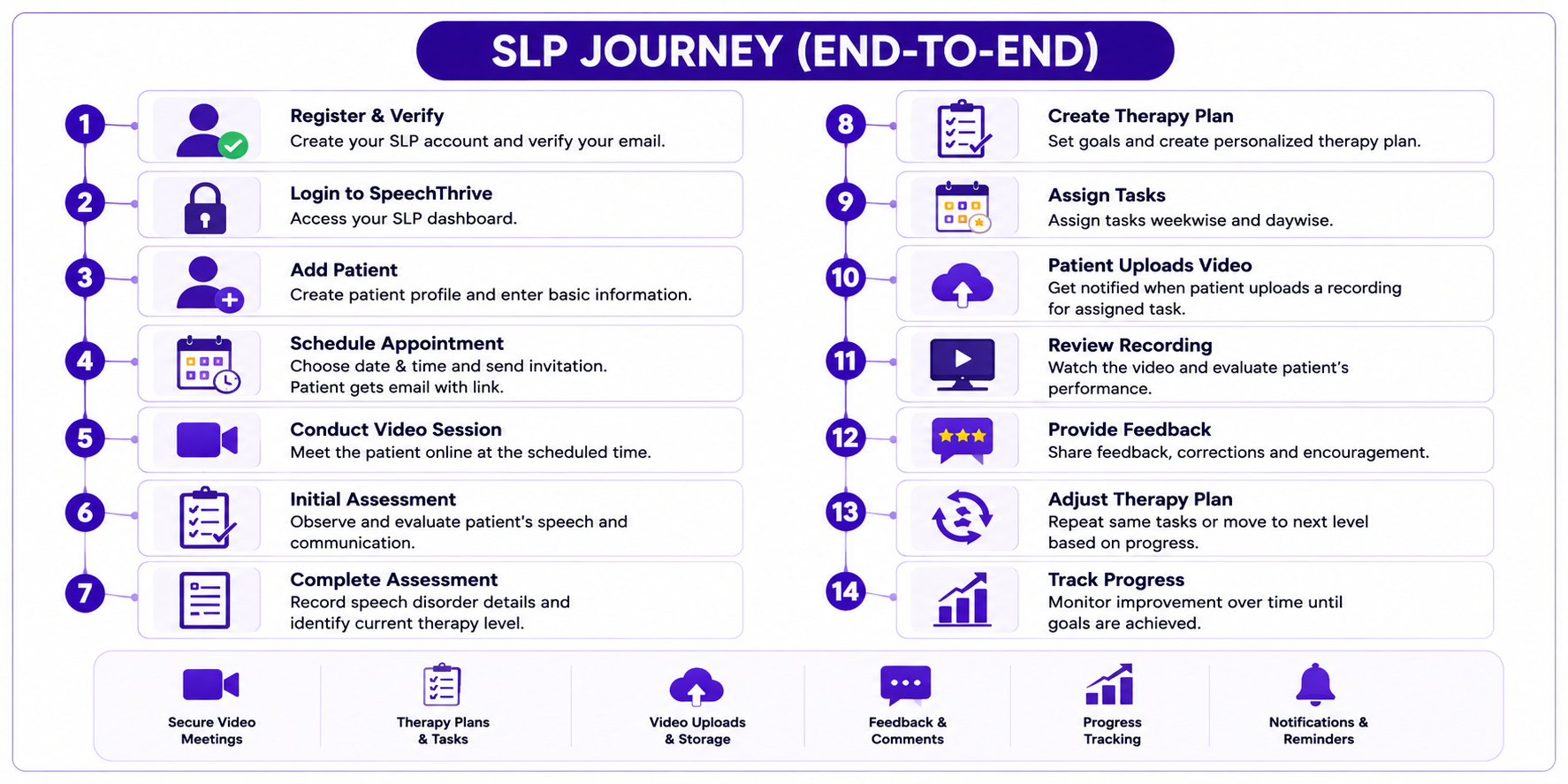
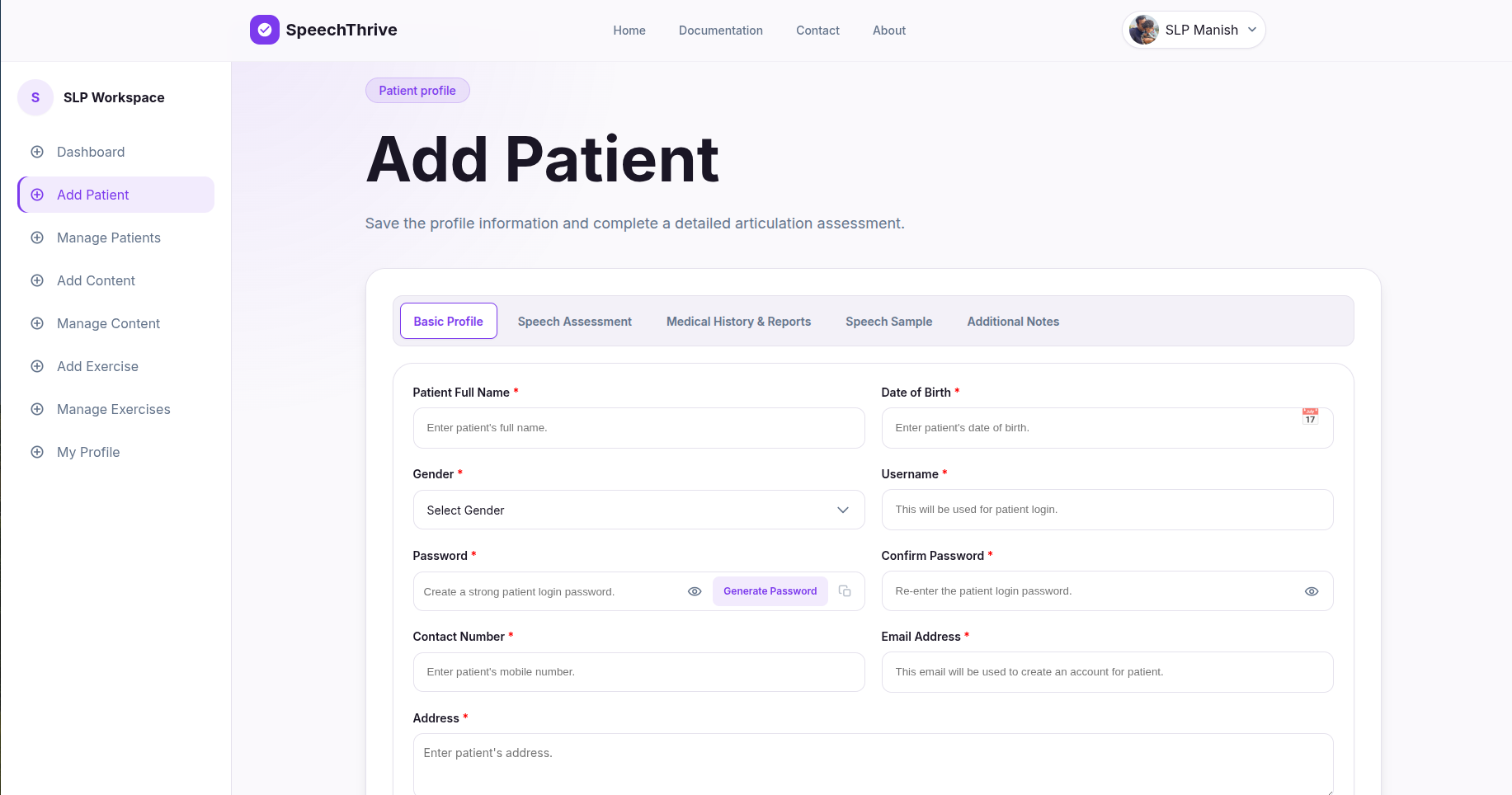
Create a patient profile from Add Patient module by entering the patient's basic information. The platform automatically creates a patient account, and you can securely share the login credentials with your patient.
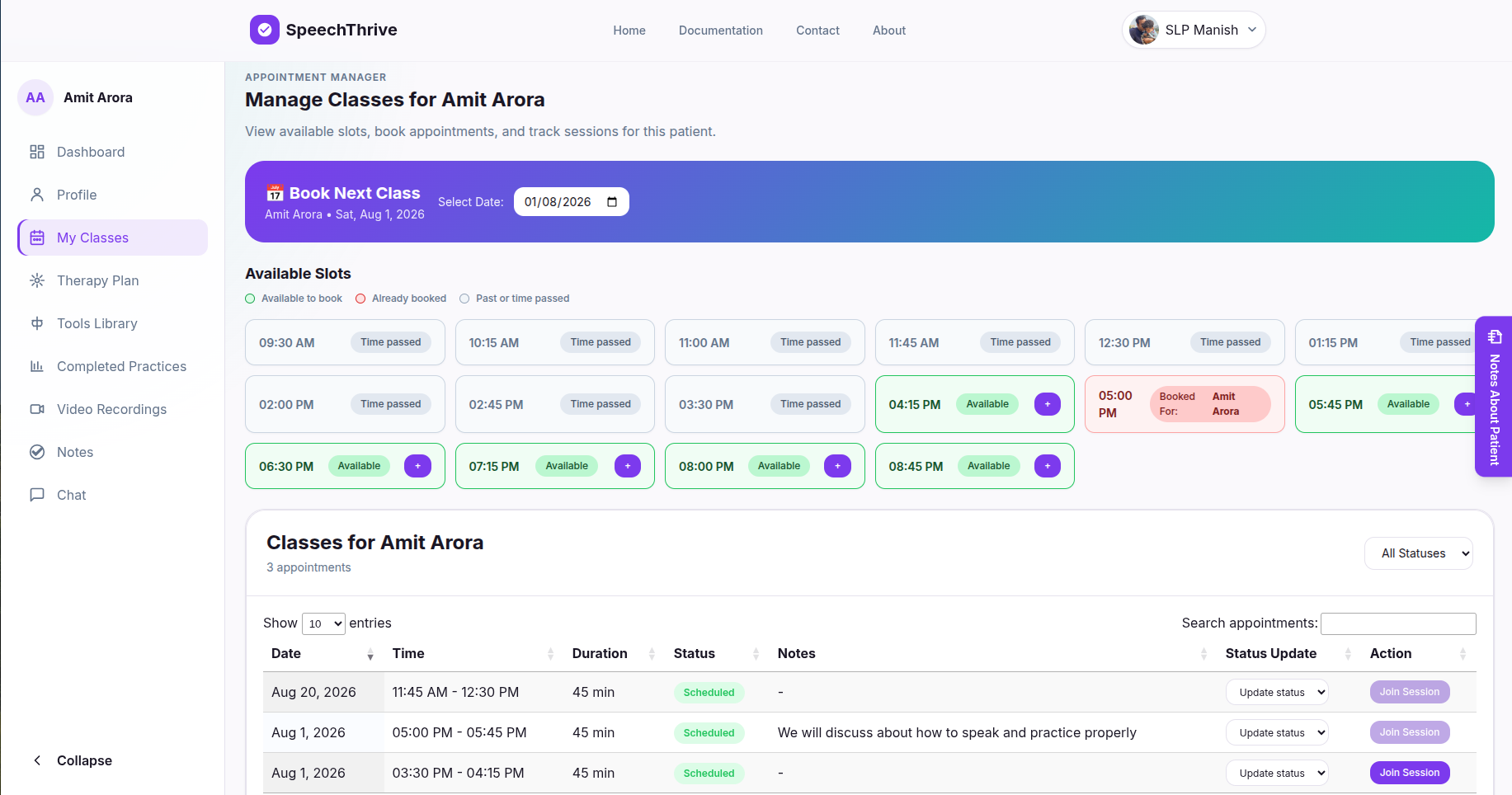
Create an appointment and invite your patient to a secure video session. Both you and your patient can join the video call directly from SpeechThrive at the scheduled time without installing any additional software.
Observe your patient's speech during the consultation, identify the speech disorder, determine the current therapy level, and document your assessment in the patient's profile section. This assessment becomes the foundation for the therapy plan.
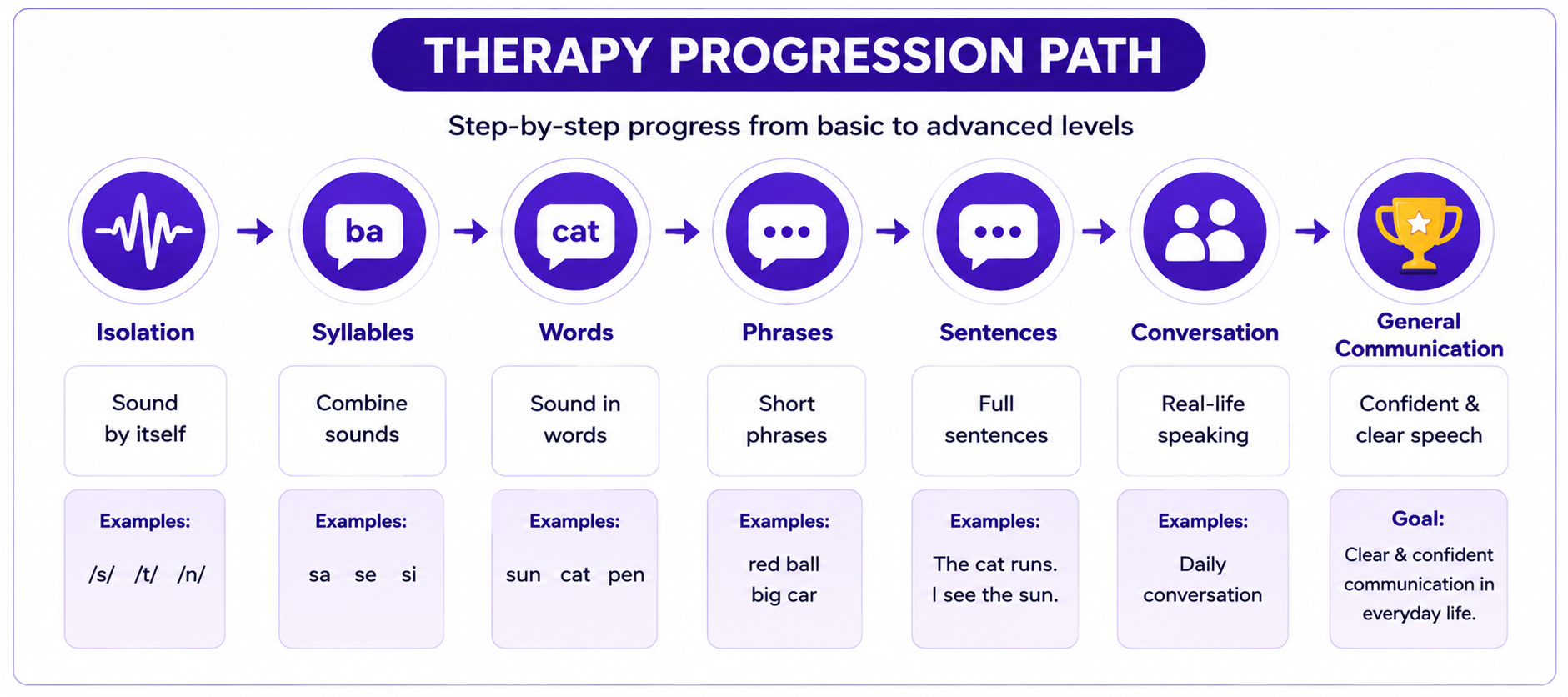
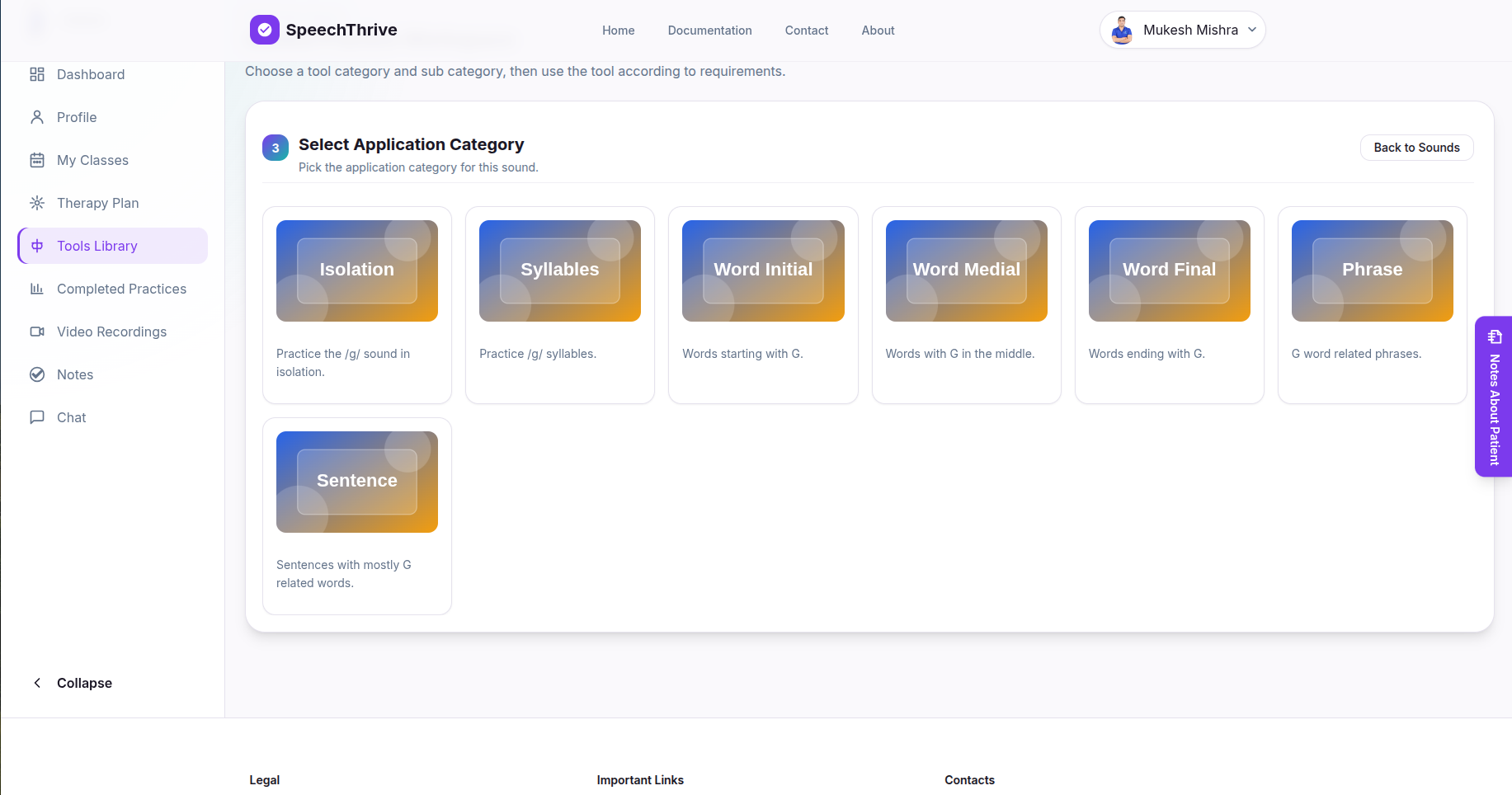
Based on your assessment, create a customized therapy plan by selecting appropriate practice activities. Assign tasks according to the patient's current level, such as Isolation, Syllables, Words, Phrases, Sentences, or Conversation.
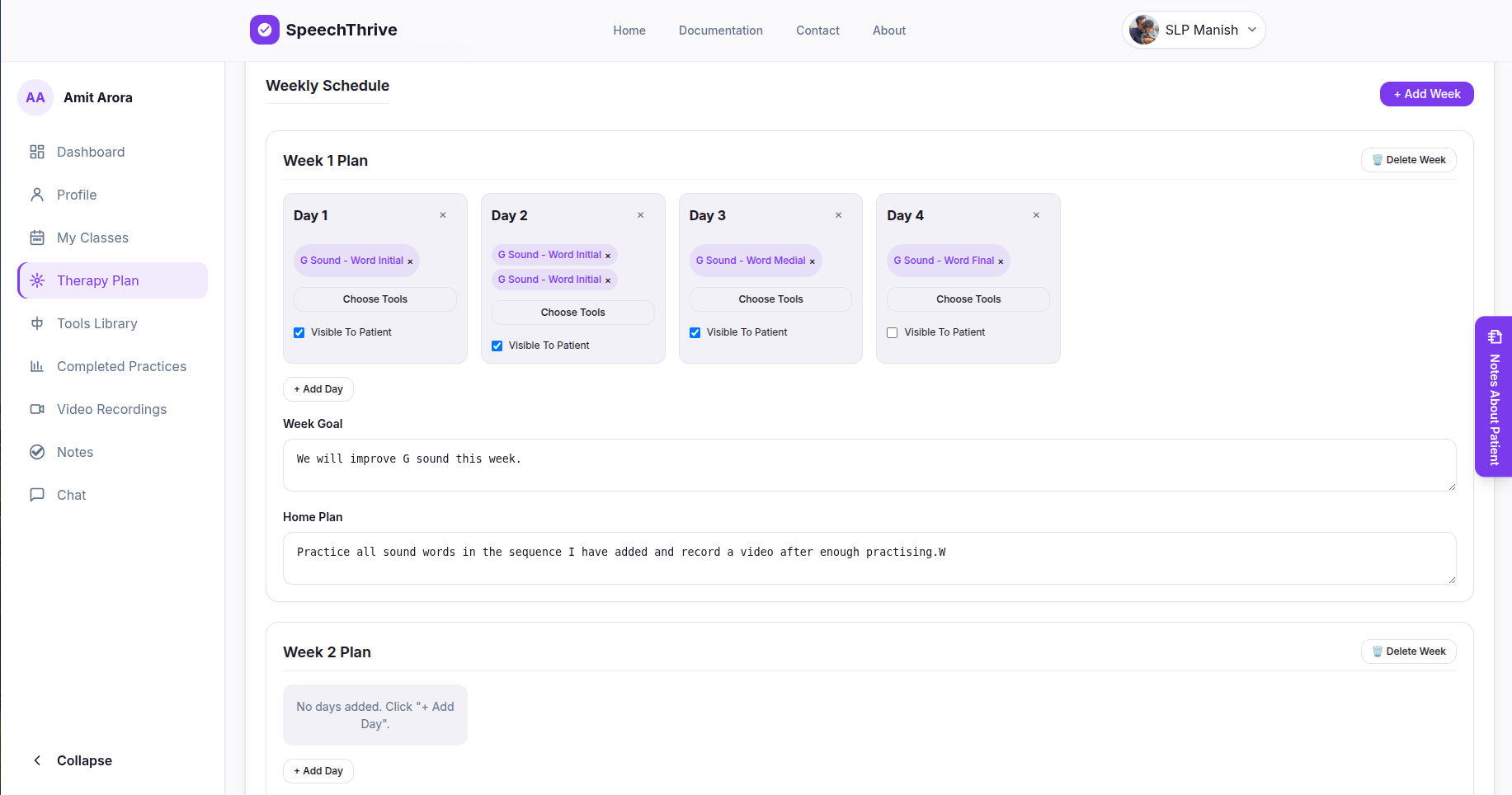
Organize therapy activities week-wise and day-wise. You can assign the same exercise for multiple days when additional practice is needed or gradually introduce more challenging tasks as the patient improves.
The patient logs into SpeechThrive, views the assigned therapy plan, practices the activities at home, records their speech after enough practicing, and uploads the video recordings for SLP's review.
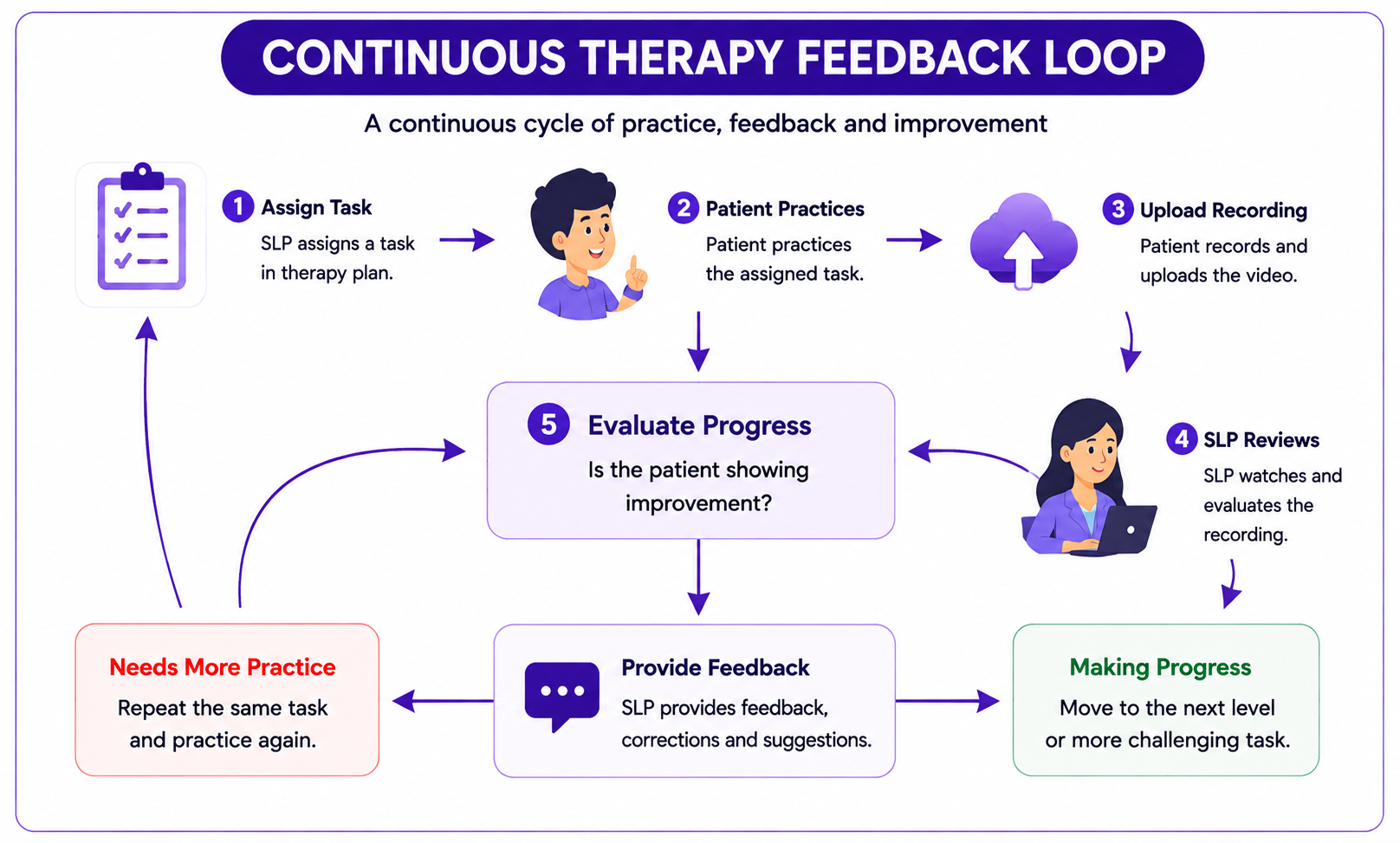
Watch each submitted recording, evaluate the patient's pronunciation and performance, and provide clear feedback, encouragement, and suggestions to help the patient improve before the next practice session.
Monitor the patient's progress and update the therapy plan accordingly. Repeat the same activity when more practice is needed, or advance the patient to the next level, such as moving from Words to Phrases or from Phrases to Sentences.
Continue the therapy cycle of assigning tasks, reviewing recordings, providing feedback, and updating the therapy plan until the patient achieves clear, confident speech and successfully completes the therapy program.
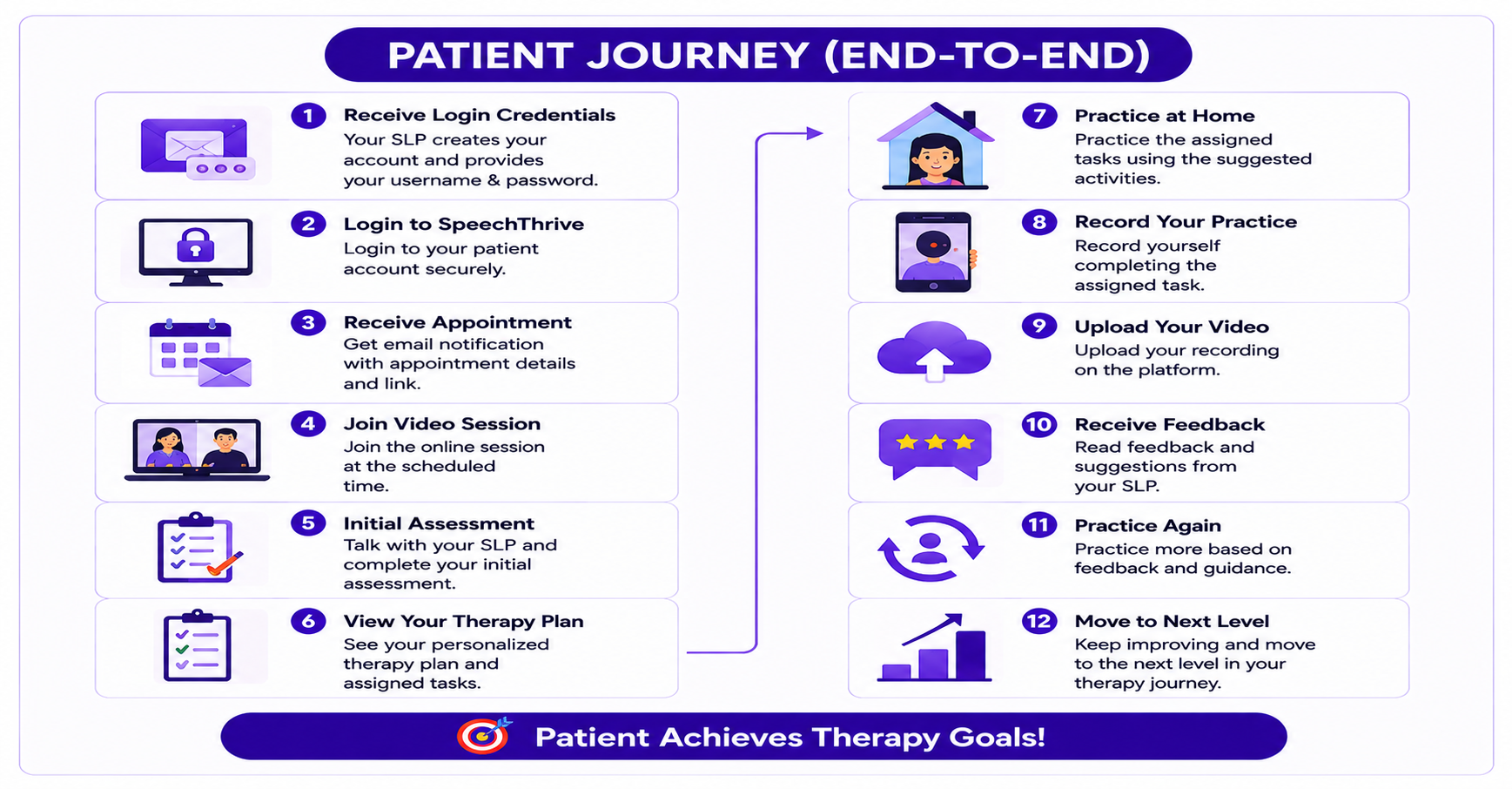
Your Speech-Language Pathologist (SLP) will create your patient account on SpeechThrive and provide you with your username and password. Keep these credentials safe, as you will use them to access your therapy activities.
Open the login page and sign in using the credentials provided by your SLP. After logging in, you will be taken to your patient dashboard where you can access all your therapy activities.
Join the online video appointment scheduled by your SLP. During this session, your SLP will observe your speech, understand your communication needs, and determine the appropriate starting level for your therapy.
Once your assessment is complete, your SLP will create a personalized therapy plan for you. Open your Therapy Plan to view the exercises and practice activities assigned for each week and day.
Complete the assigned speech exercises regularly. Practice exactly as instructed by your SLP to improve your pronunciation, speech clarity, and communication skills.
After completing your practice, record your speech directly within SpeechThrive using your phone, tablet, or computer. Ensure your recording is clear before submitting it.
Submit your recorded practice through the platform. Your SLP will automatically be notified that a new recording has been uploaded and is ready for review.
Your SLP will review your recording and provide personalized feedback, corrections, encouragement, and suggestions to help you improve your speech before your next practice session.
Continue practicing based on your SLP's feedback. As your speech improves, your SLP may assign more advanced exercises, helping you gradually progress from sounds and words to phrases, sentences, and everyday conversation.
Continue the cycle of practicing, recording, receiving feedback, and improving until you achieve your speech therapy goals. Your progress is tracked throughout your therapy journey, allowing both you and your SLP to celebrate every milestone.
Registration, Login, And Access
SpeechThrive uses role-based access. SLPs create professional accounts, while patient accounts are created by the treating SLP so therapy, messages, plans, videos, and notes stay connected to the correct clinical relationship.
Register And Verify
Create your SLP account from login page, verify your email address, and wait for administrator approval before using the clinical workspace.
Accept The Agreement
After approval, log in and accept the SLP service agreement. You will then enter your dashboard and can begin setting up patients.
Receive Your Login
Patients and parents do not self-register. Your SLP creates your profile from Add Patient, sets your username and password, and shares access with you.
Verify And Sign In
Verify your email if prompted, then sign in from login page with the credentials provided by your SLP. Contact your SLP if the login details are missing or no longer work.
SLP Portal
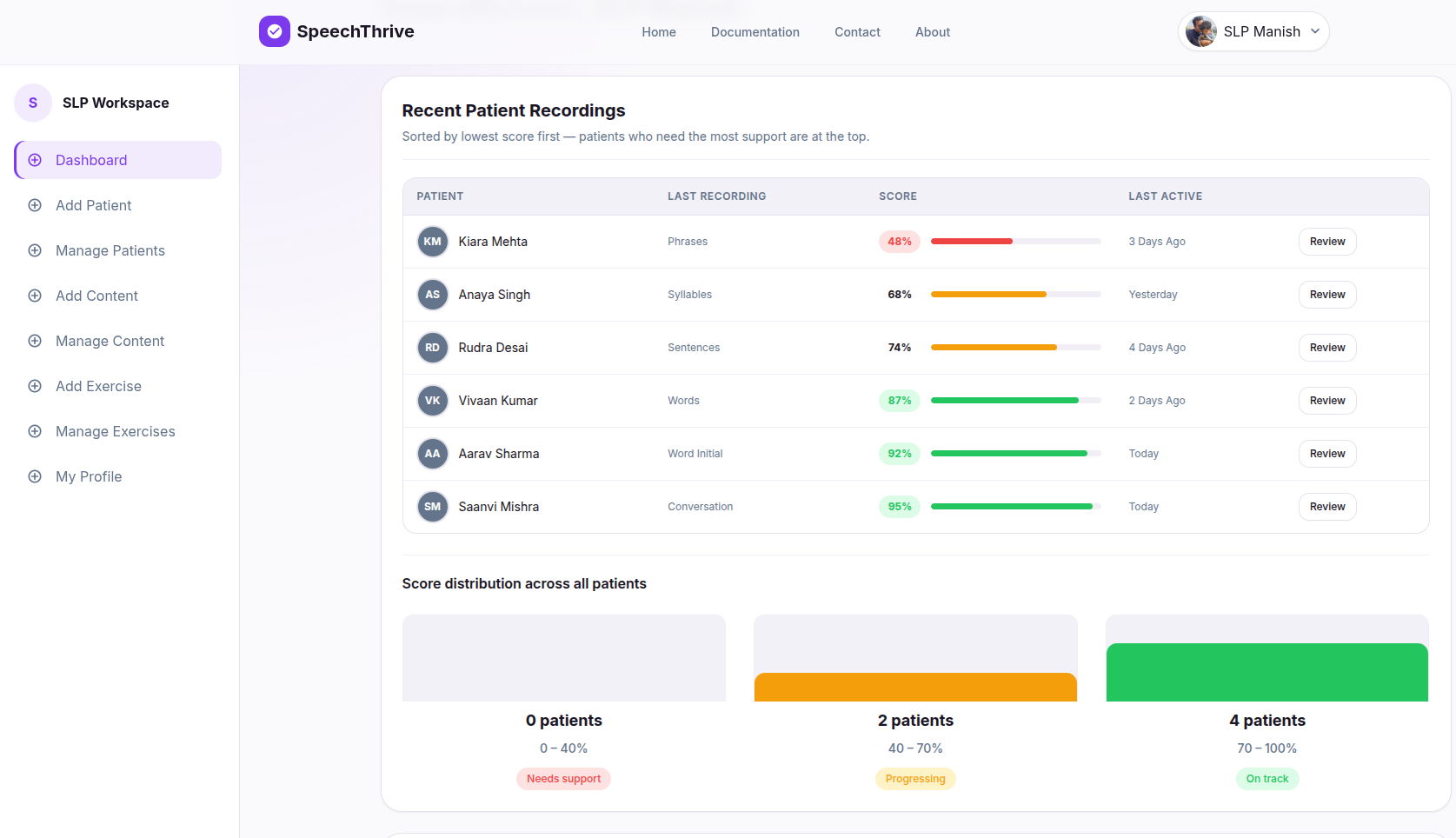
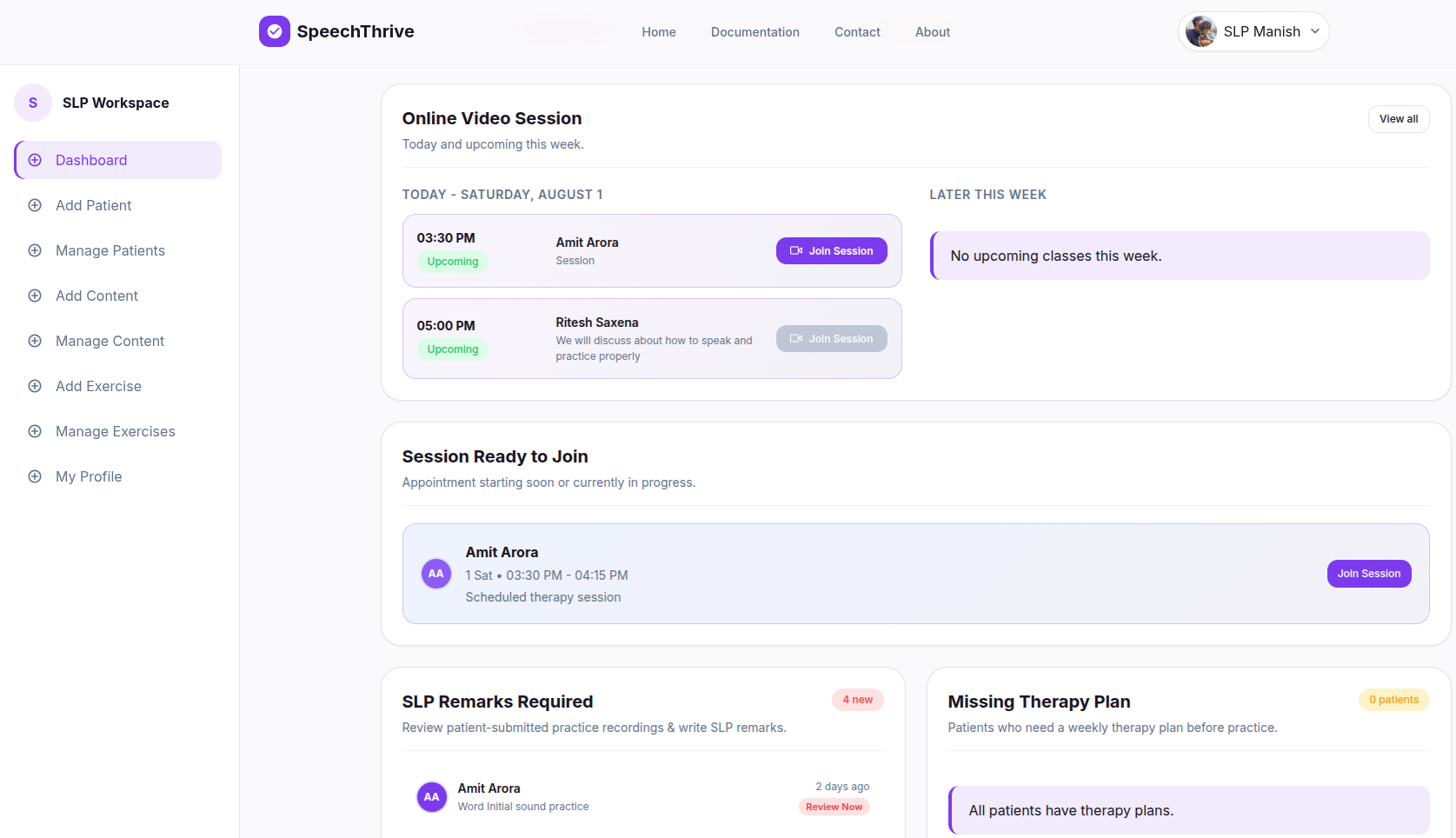
The SLP Portal is the control center for your caseload. It gives you quick access to patient management, therapy planning, online appointments, clinical notes, uploaded exercises, custom practice content, and review workflows.
Dashboard
Open the SLP dashboard to review monthly sessions, upcoming appointments, patient activity, recent recordings, and unread chat messages.
Add Patient
Use Add Patient to create the patient login, enter profile details, add parent or guardian information, and start the verification process.
Manage Patients
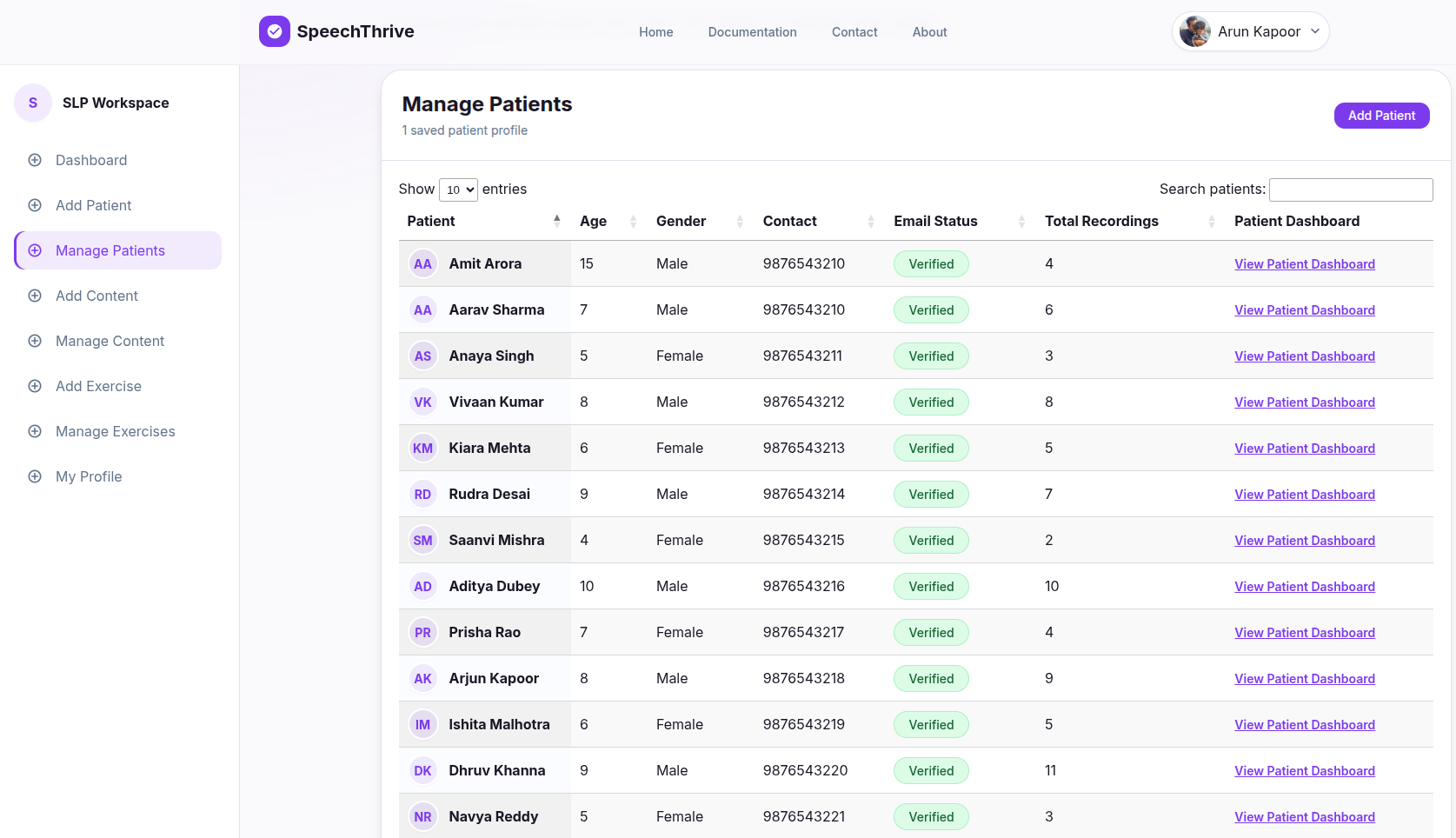
Use Manage Patients to open each patient workspace, update profiles, resend verification messages, and manage account access.
Add And Manage Content
Use Add Content for custom words, phrases, and sentences, then use Manage Content to edit or remove them later.
Add And Manage Exercises
Use Add Exercise to upload exercise videos and Manage Exercise to maintain the exercise library.
My Profile
Open My Profile to keep your name, photo, contact details, qualifications, clinic information, and account settings current.
Patient Workspace
From Manage Patients, open View Patient Dashboard to work with one patient at a time. This workspace brings together assessment notes, online sessions, therapy plans, submitted recordings, progress, private notes, and chat.
Profile And Assessment
Start from Manage Patients, open a patient workspace, and maintain demographics, contact details, parent information, package details, and initial speech assessment data.
Online Classes
Open the patient workspace from Manage Patients to schedule, reschedule, start, join, cancel, and complete online therapy sessions.
Therapy Plan
Open a patient dashboard through Manage Patients, then create week-wise and day-wise plans with practice levels, tools, exercises, games, frequency, and instructions.
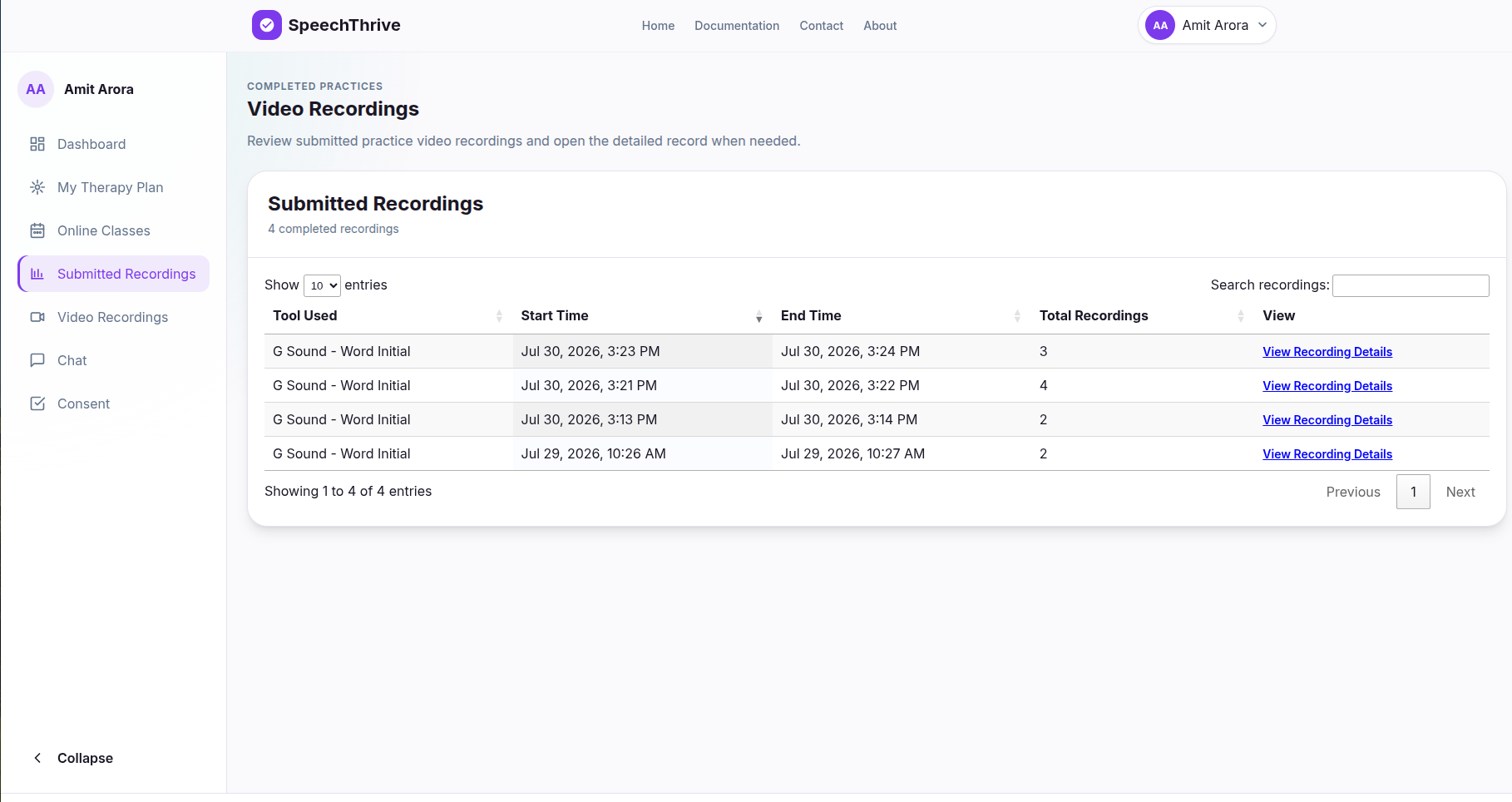
Completed Practices
From the patient workspace, review submitted tasks by assignment, watch recordings, check scores, and provide useful feedback.
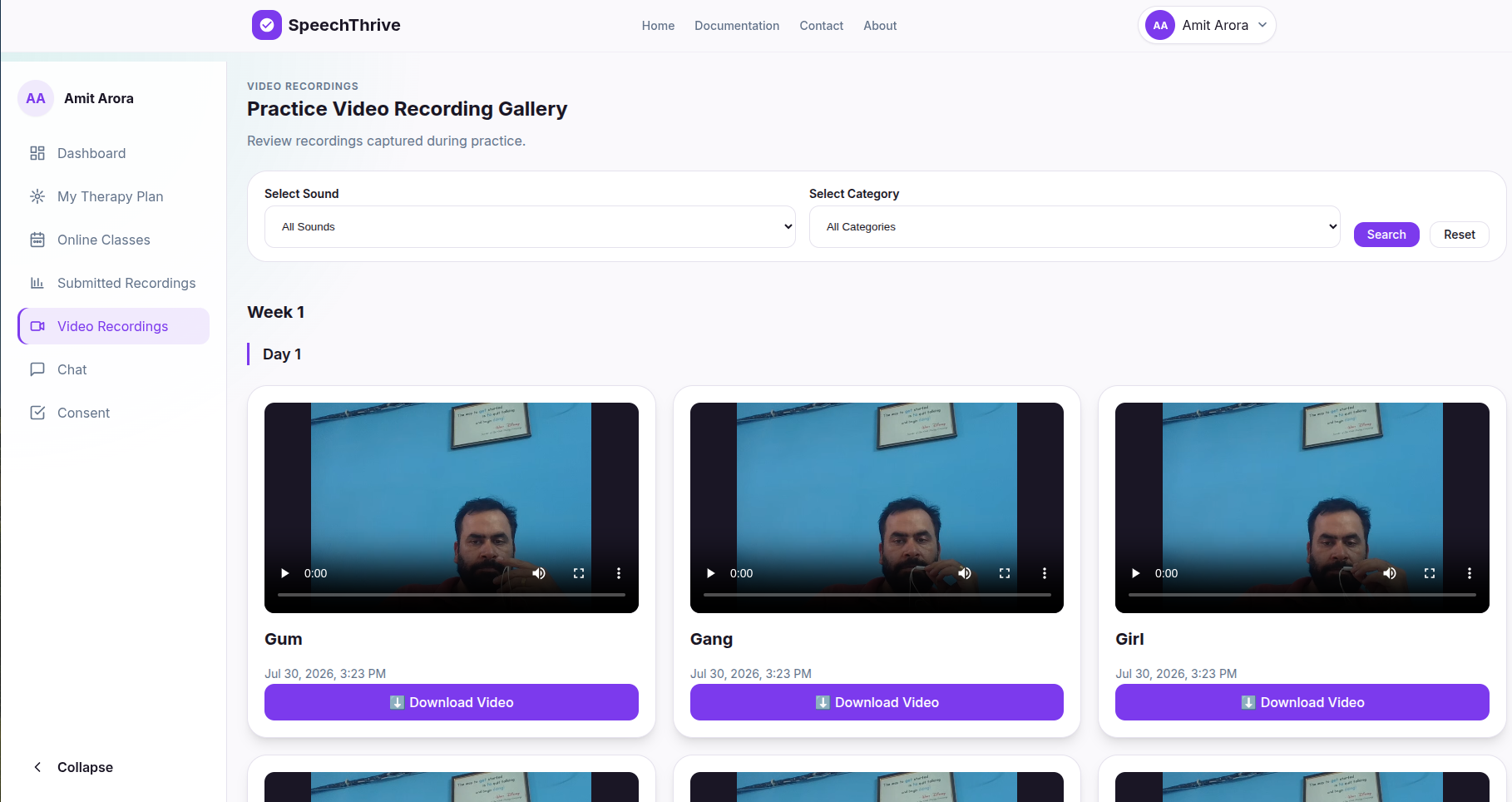
Video Recordings
Browse all videos submitted by the patient in one gallery for quick review and comparison over time.
Notes And Chat
Keep private clinical notes for yourself and use chat for direct patient or parent communication.
Patient Portal
The Patient Portal is where patients and parents see what to do next. It shows therapy plans, upcoming online classes, assigned practice tools, submitted recordings, SLP feedback, and chat in a simple guided workspace.
Dashboard
Open your Patient Dashboard to see weekly activities, upcoming sessions, pending practice, recent feedback, progress, and submitted recording counts.
My Therapy Plan
Open My Therapy Plan, follow each daily task, practice as needed, record your video, and submit it for SLP review.
Online Classes
View scheduled sessions from your dashboard, join at the correct time, and review past appointments.
Practice Tools
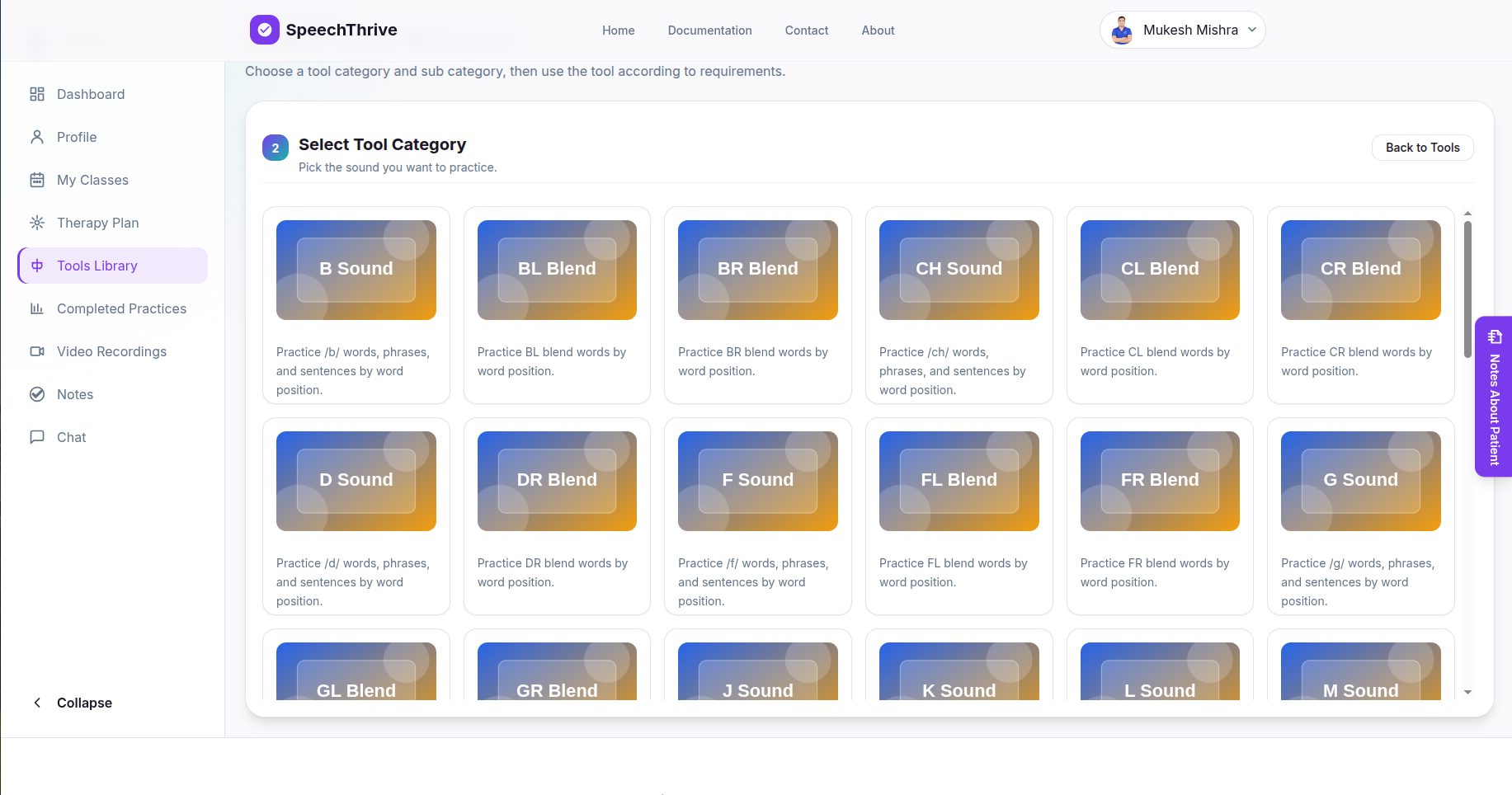
Use Practice Tools and Exercises for assigned sounds, syllables, words, phrases, sentences, interactive games, and memory games.
Submitted Practices
Open Submitted Practices to track completed tasks, review status, and read feedback from your SLP.
Recording Library And Chat
Use Recording Library to find submitted videos and Chat when you need help or scheduling support.
Platform Screenshots
Select the hand icon on any image to view it in a full-screen responsive popup. The popup also displays the image alt text as its title.
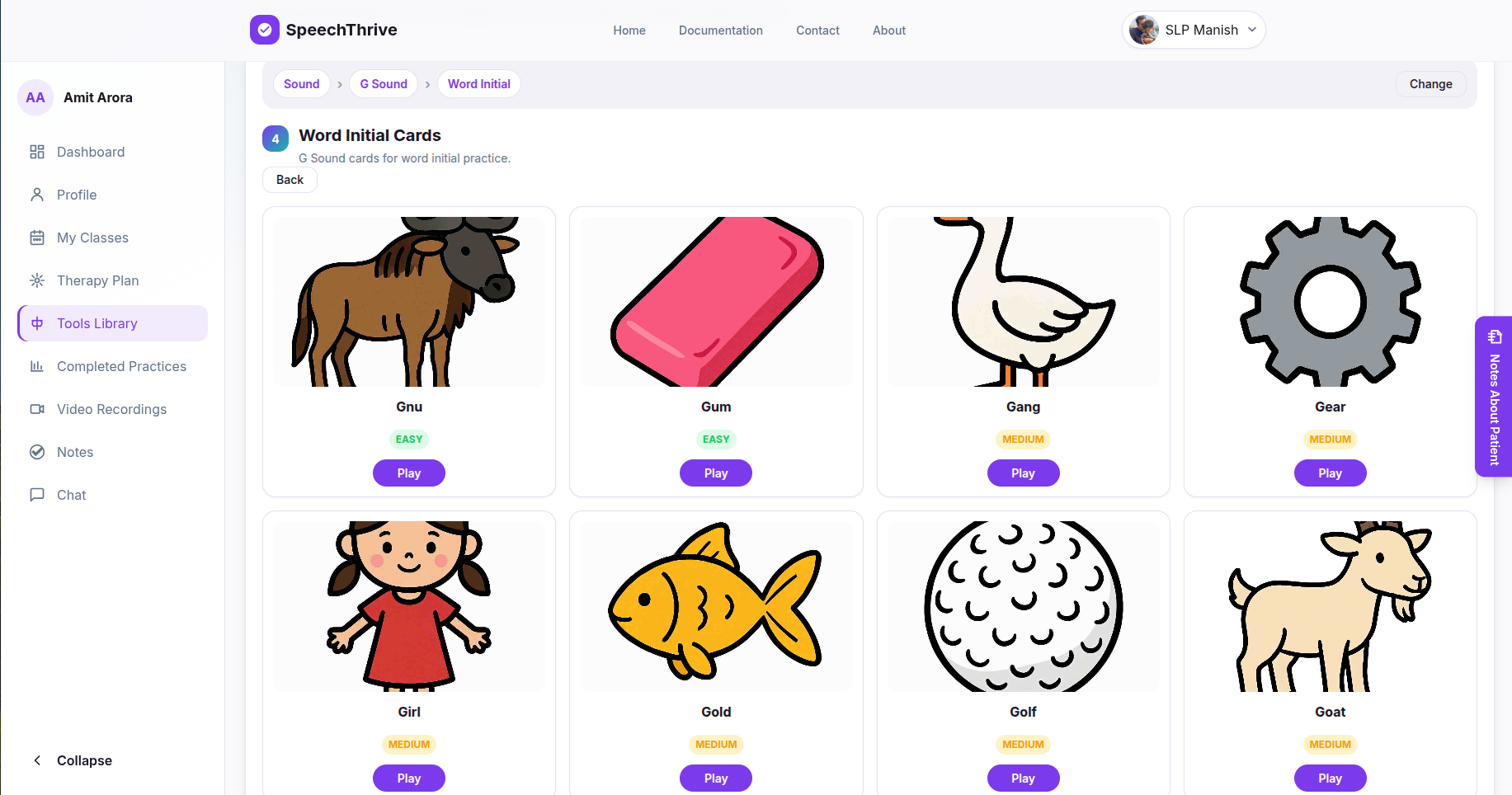
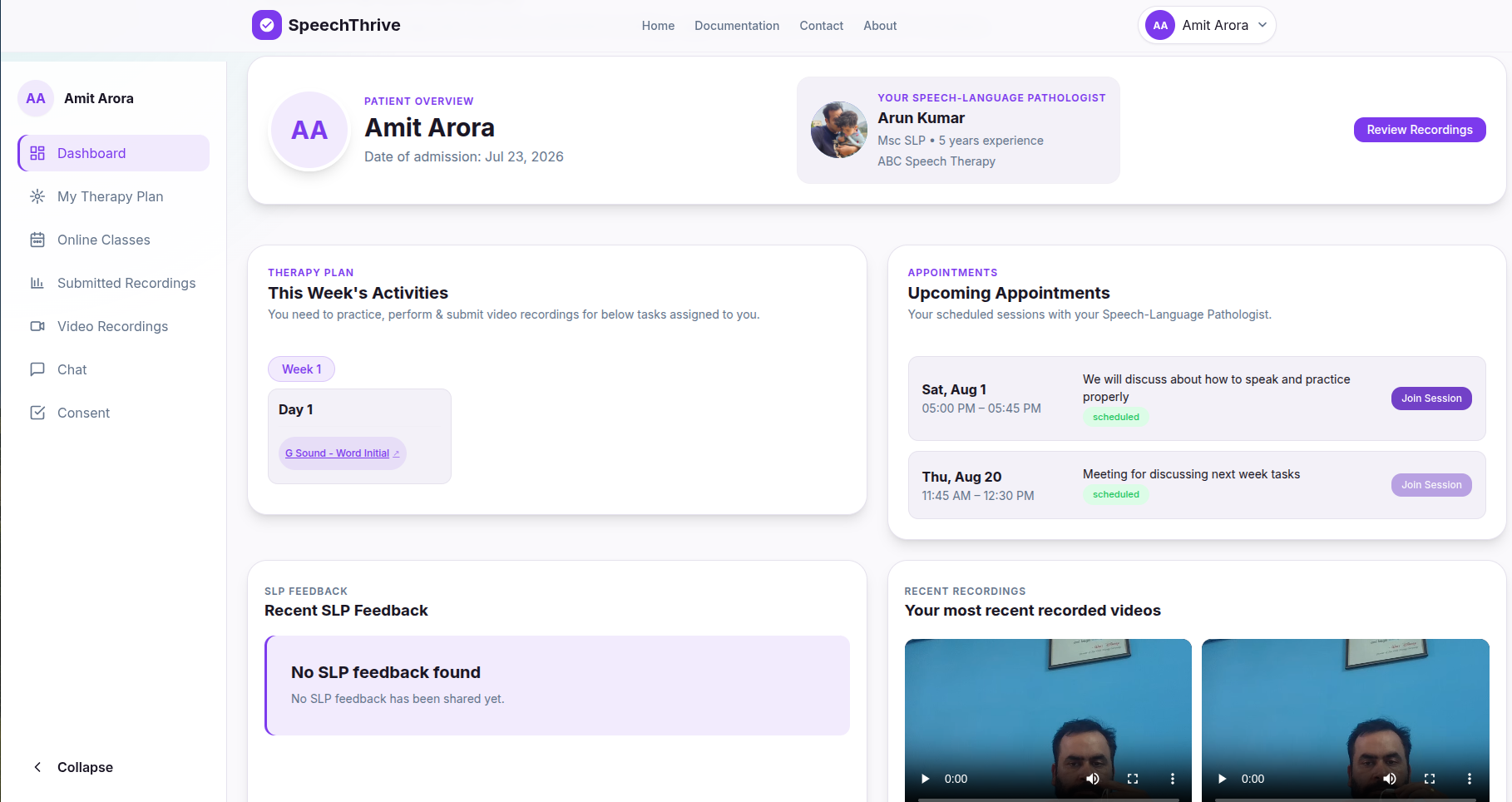
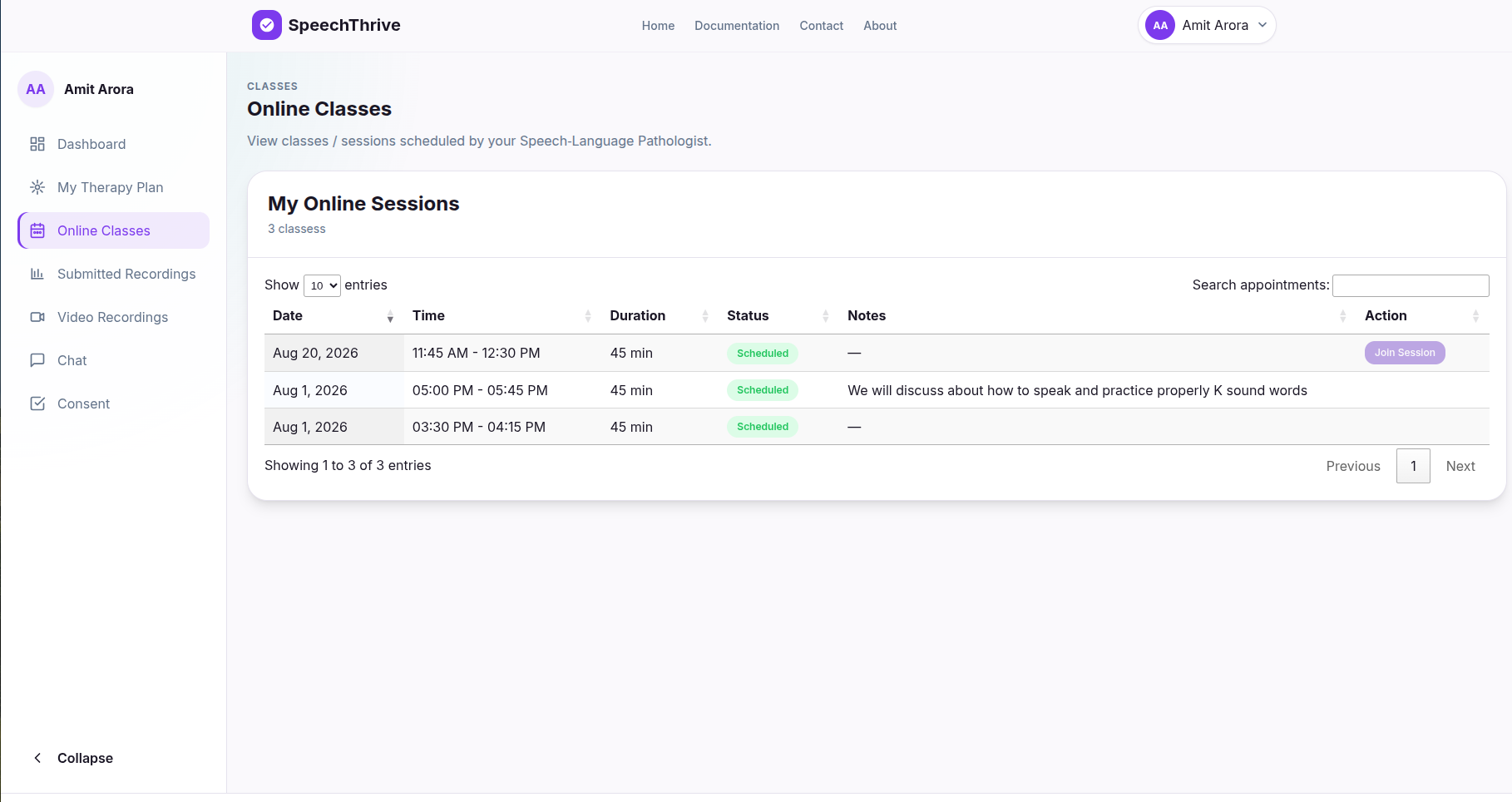
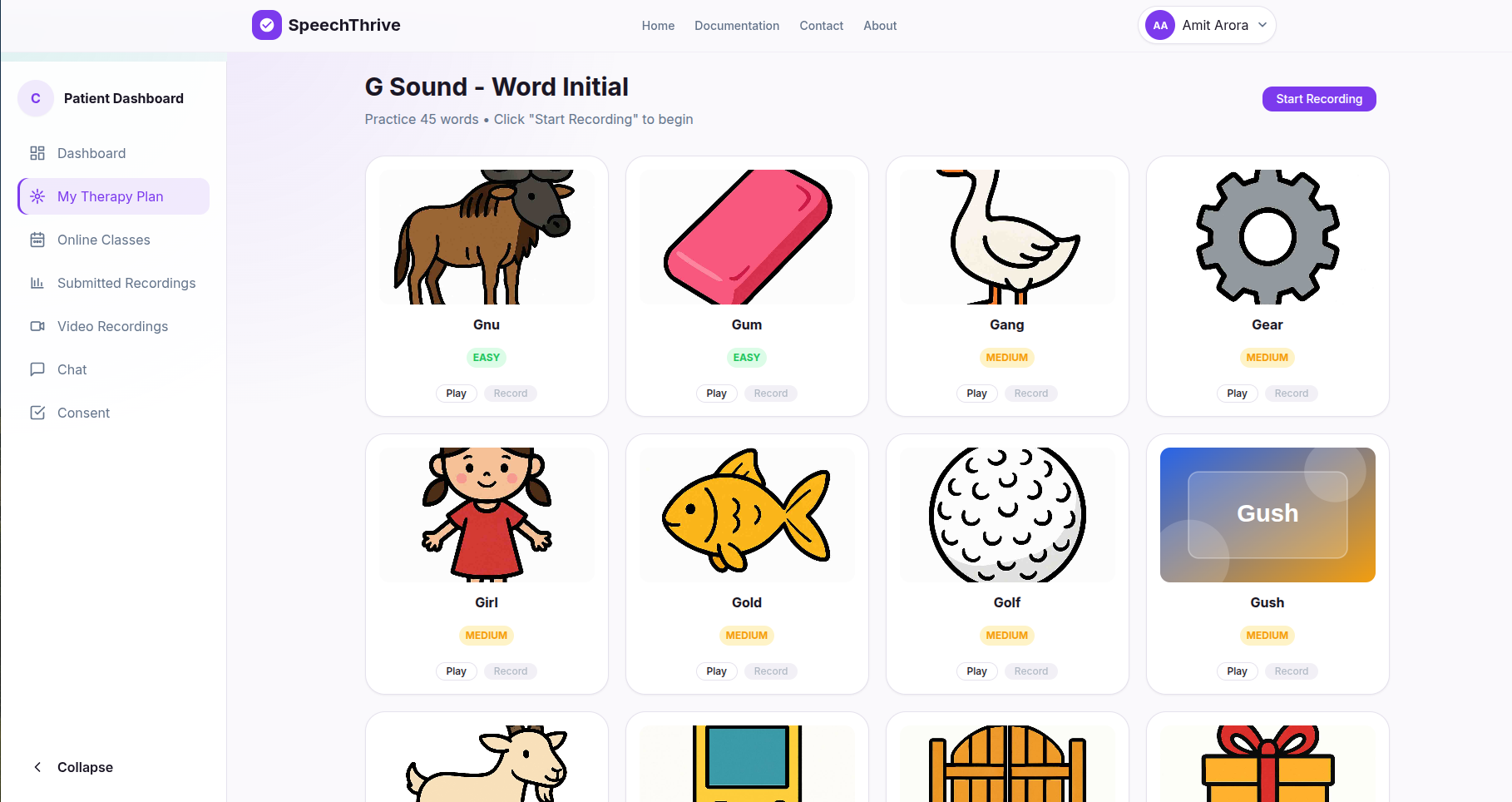

Getting Started
Think of your first day as a guided handoff: set up access, confirm the therapy path, complete one meaningful action, then build a routine around review and feedback.
For SLPs: Build The First Therapy Loop
- Complete SLP registration and login, email verification, approval, and the service agreement.
- Use Add Patient to add your first patient and confirm their account details are correct.
- Schedule an initial session and document the assessment after the call.
- Create a simple first-week plan with clear daily tasks and instructions.
- Ask the patient to submit one practice recording, then review it and add feedback.
- Use Manage Patients, the recording, score, and your clinical judgment to adjust the next week.
For Patients And Parents: Complete The First Practice Loop
- Use login page with the details from your SLP and verify your email if asked.
- Check your dashboard for appointments, pending tasks, and new feedback.
- Open My Therapy Plan and choose the task assigned for today.
- Practice from Practice Tools until you feel ready, then record and submit your video.
- Read your SLP's feedback in Submitted Practices before the next task.
- Message your SLP in Chat if instructions, timing, or login access is unclear.
Frequently Asked Questions
These questions are written for both clinical users and families starting with SpeechThrive.
Can I see another SLP's patients, plans, content, or recordings?
No. Patient records, custom content, therapy plans, messages, and submissions are scoped to the correct SLP account for privacy and security.
What should I do immediately after adding a patient?
After using Add Patient, confirm the profile, share the login credentials securely, schedule the first session, and start the assessment record so planning has a clear baseline.
How are therapy plans organized?
Open the patient workspace from Manage Patients. Therapy plans are organized by week and day, with practice tools, sounds, exercises, games, frequency, and instructions for each day.
What is the difference between Completed Practices and Video Recordings?
Completed Practices groups submissions by assignment and review status. Video Recordings is a broader gallery of all videos submitted by that patient.
Can patients see my clinical notes?
No. Notes are private clinical records for the SLP and are not displayed in the patient or parent portal.
Should I rely only on the speech score?
No. Use the score as one input. Your review, the recording, patient history, and clinical judgment should guide feedback and plan changes.
Can I create my own patient account?
No. Your SLP creates your account and shares your username and password with you or your parent or guardian. Once you receive them, use login page.
What if I cannot log in?
Open login page, check that you are using the credentials from your SLP, complete email verification if required, and contact your SLP if access still fails.
Where do I find today's practice?
Open My Therapy Plan from the Patient Portal. Your daily tasks, instructions, tools, and recording options are shown there.
Do I need to record every practice attempt?
Follow your SLP's instructions. Usually you can practice as much as needed, then submit the recording you want your SLP to review.
Can I change or cancel an online session myself?
No. Scheduling is managed by your SLP. Use Chat to request a change or ask about appointment timing.
Where can I see feedback?
Open Submitted Practices to review feedback, review status, and previous submissions. Your dashboard may also show recent feedback highlights.
No documentation sections match your search.